- Configure depending on if bot is on the same computer as server, or using RCON for remote control.
- Interface with server using RCON, Tmux/Screen or subprocess. Some features are disabled if using RCON or Subprocess.
- NOTE: Some features will not work if on Windows, you can use something like WSL.
- Optionally run the bot and server inside the same or different Tmux/Screen sessions.
- The bot can use Tmux/Screen to send commands to the server, or use the Python subprocess module to run and manage the server.
- Some features depend on if you have read/write access to server files (server.jar, logs, property files, etc).
- If using Tmux/Screen or subprocess to control the server, the bot has to send a
xpcommand with a randomly generated number so the bot can read the output properly.- NOTE: This is disabled when using RCON.
- If you have better ways so it doesn't clog up the logs, lmk!
- Basic commands: say, kick, teleport, save, weather, and gamemode.
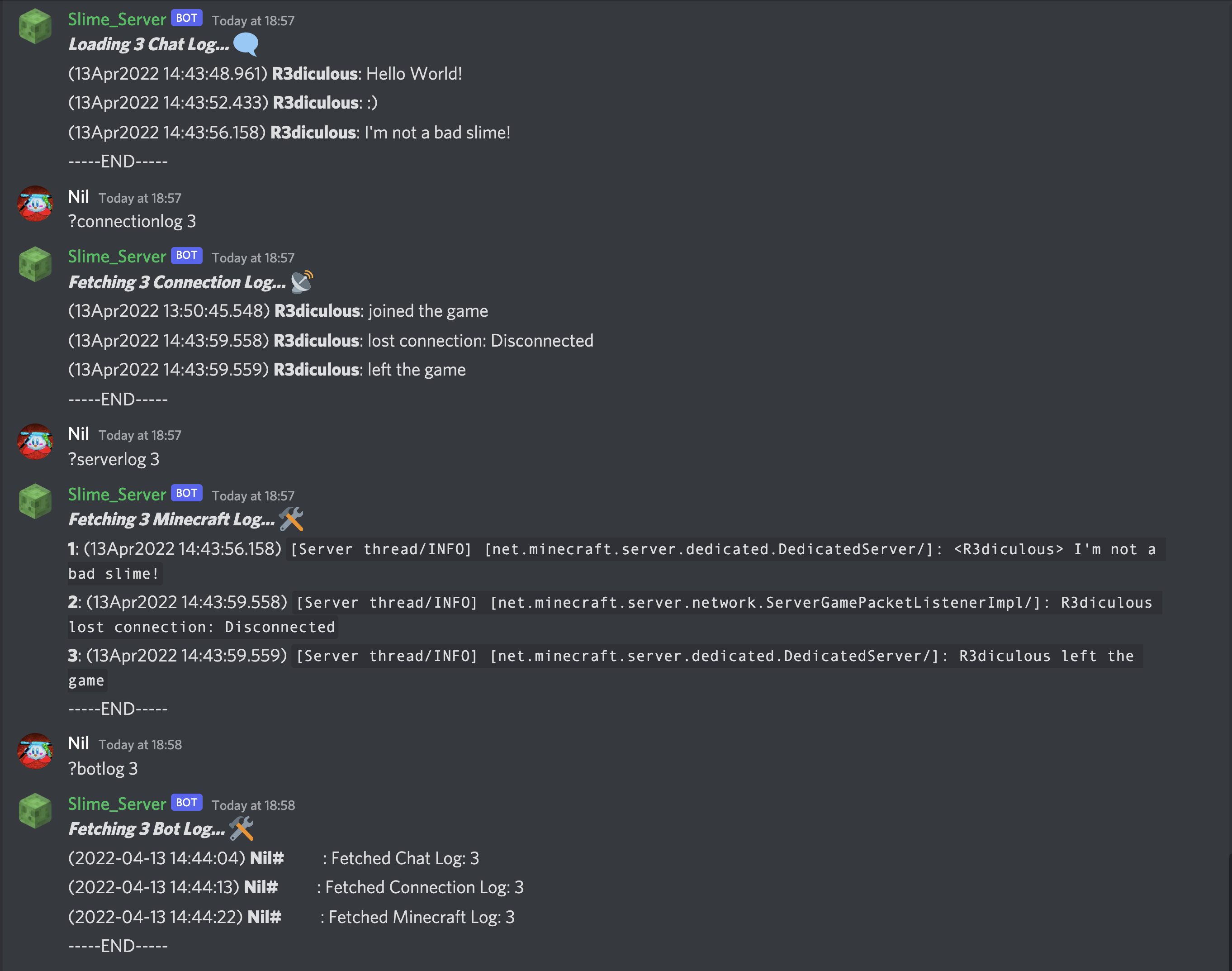
- Show connection history, chat log, online players, banned, OP list, and whitelist.
- World save backup and restore system. Also has server folder backup/restore feature. These features need direct access to server files.
- Server autosave, start, stop, status, version, log, update server.jar (only with Vanilla or PaperMC), and edit server.properties.
- Join Discord server for bot help: https://discord.gg/s58XgzhE3U
- See releases (may not have latest code): https://github.com/0n1udra/slime_server/releases
- Download latest commit (.zip): https://github.com/0n1udra/slime_server/archive/refs/heads/master.zip
- Jump to: Guide, Screenshots, Support me
- Discord user and role specific permissions for certain commands and/or command groups.
- Be able to setup and change bot and server settings without having to edit user_config.json file.
- Show command usage for more commands.
- Python 3.8+
- Java 64bit (If bot starting Minecraft server)
- Tmux/Screen (Optional)
- WSL (Optional if on Windows)
- discord.py 2.0
- asyncio
- file-read-backwards (Needed for reading server log file (for now))
- mctools (If using RCON)
- subprocess, requests, datetime, fileinput, random, gzip, json, csv, sys, os, re
- beautifulsoup4 (For
?serverupdatefeature)
- Create Discord bot in Discord Developer Portal. Scroll down for instructions or click here
- Setup Python venv (if using) and install libraries. Scroll down for instructions or click here.
- Update settings by editing
user_config.jsonvariables. Scroll down for more or click here- NOTE: JSON file uses double quotes for strings.
- Also, Do NOT edit the
exampleserver config entry.
- Run
python3 run_bot.py help, shows commands to setup tmux and/or run bot.
python3 run_bot.py makefolders- Create required folders if starting from scratch.python3 run_bot.py startbot- Starts bot.python3 run_bot.py attachbot- Attach to tmux/screen if using.python3 run_bot.py startbot attachtmux
- Use
?setchannelor?sccommand to set channel id. This is optional, any command issued to the bot will update the channel_id, however you may not see an output for that command until reissued. - Read through the help pages with
?helpor?help2in Discord. - Optionals:
- Use
?serverscancommand to add servers you manually put in the 'servers' folder. - You can use
?updateto download latest .jar file (Downloads latest PaperMC by default, more details inslime_vars.pycomments, line 63)
?help,?help2- Help pages. First one is my custom embed layout, second one is default discord.py format.?start,?stop,?restart- Start/stop Minecraft server.?check- Check if server is online, and if console is reachable, if able.?status- Server information: status, version, motd, address/IP, players online, etc.?players- Show names of online players.?playerpanel- Common bot commands and functionality using discord.py components.?teleportpanel- Easy to use teleport panel. Includes return button to return teleported player to previous position.?playerlocate- Get xyz coords of player.?serverproperties- Show or edit properties in server.properties file.?worldbackup,?worldrestore,?serverbackup,?serverrestore- Manage world and server backups.?serverlog,?chatlog,?connectionlog,?botlog- Show logs for: server, just player chats, server connections and bot.?update- Update server .jar file.- The bot checks the server name and description configs to determine what flavor of server to get.
E.g. Ifpapermcis in the server description, it'll get the latest PaperMC jar from official site. - Currently working: vanilla, papermc
- The bot checks the server name and description configs to determine what flavor of server to get.
?botupdate- Uses Git CLI to pull the latest update from Master branch.
Note: Will not work if there's local changes. Either stash them or usegit restore .in source folder.
- Either use
python3 run_bot.py makefoldersto create these folders or create your own and update the paths in configs.- Above command will create
Gamesfolder in your home directory if it doesn't exist. ThenMinecraft,servers,world_backups, andserver_backupsinside.
- Above command will create
Example folder structure:
Home (home_path, e.g. ~/ or C:\Users\0n1udra)
└─ Games
    └─ Minecraft (mc_path)
       ├─ servers (servers_path)
       │  ├─ papernc (server_path, e.g. ~/Games/Minecraft/servers/papermc)
       │  │  └─ server.jar
       │  └─ vanilla
       │     └─ server.jar
       ├─ server_backups
       │  ├─ papermc (server_backups_path)
       │  └─ vanilla
       └─ world_backups
          ├─ papermc (world_backups_path)
          └─ vanilla
use_pyenv,pyenv_activate_command- If using python virtual environment.bot_launch_command- Set custom arguments when launching bot.show_sensitive_info- Show or hide sensitive info in launch banner.disabled_commands- Disable specific commands. Must put original command name not aliases if you want to completely disable it.bot_token_filepath- Path to Discord token file.command_prefix,case_insensitive- Discord command prefix, and command case insensitivity.players_custom_status,custom_status_interval- Show players online and server ping in bot's custom status section.use_custom_ping_address,custom_ping_address- Set a custom address for the ping section.
bot_use_tmux,bot_tmux_name,bot_tmux_pane- Run bot in a Tmux session.- NOTE: Set
bot_tmux_nameandserver_tmux_nameto the same to run them both in the same session. currently only supports the bot and one Minecraft server.
- NOTE: Set
bot_use_screen,bot_screen_name- Run bot in a Screen session.home_path,bot_source_path,mc_path,servers_path- Used for setting default configs for bot and servers.user_config_filepath,bot_log_filepath- Miscellaneous variables needed for bot.windows_compatibility- Bot will automatically detect if running on Windows system. This is Needed to adapt some commands to work for Windows, like starting Minecraft server.windows_cmdline_start- Bot will prefix this toserver_launch_commandto start server.selected_server,init- More miscellaneous configs needed for bot functionality.
server_name,server_description,server_version- Basic server info.- NOTE: Bot will try to detect server version. If it doesn't work, you can set it manually. however, it might be overridden by the bot if it successfully detects a version.
server_address,server_port- Server domain/IP and port. Not needed, but some features may not work properly.server_use_essentialsx- EssentialX plugin compatibility.- NOTE: Bot will use
pongcommand instead ofxp. Seestatus_checker_commandbelow for more.
- NOTE: Bot will use
server_files_access- If you are running the bot on the same system as the server, and it can access server files.- Needed for some features like world/server backup and restore, editing server.properties file, etc.
server_use_rcon,rcon_pass,rcon_port- RCON configs. Usesserver_address.server_use_tmux,server_tmux_name,server_tmux_pane- Run server in a Tmux session.server_use_screen,server_screen_name- Run server using Screen.server_use_subprocess- Run server using Python's subprocess module.- NOTE: The server will stop if the bot process is interrupted or killed.
server_launch_command- Command used to start server.server_launch_path- Optionally set a custom path to the server executable (usually a.jarfile).startup_wait_time- This is just used to send a Discord message notifying how long the server takes to start.save_world_wait_time- Set how long it takes for the server to save the world after sending asave-allcommand.check_before_command- Only used ifserver_files_accessis true. Sends a command to the server to check if it's reachable before sending actual command.- NOTE: This will clog your logs up. However, disabling this will mean the bot will not be sure if the server is reachable and if commands issued were successful or not.
status_checker_command"- The command that will be sent to server with a random number, then bot will check server logs to see if it was received. E.g.xp 0.123463246.
command_buffer_time- The time it takes for the server to run commands. Change this if your server is slower.enable_autosave,autosave_interval- Sendsave-allcommand at specified minutes interval.log_lines_limit- Set limit to how many log lines bot can read for some commands, like?chatlog.server_path,world_backups_path,server_backups_path,server_logs_path,server_log_filepath,server_properties_filepath- Bot will automatically set these based onmc_path. You can manually update them.world_folders- Specify what world folders to backup.useful_websites- For?linkscommand, which shows a Discord embed of these links.server_ip- Bot will automatically set this ifserver_addressis set.
- Go to: https://discord.com/developers/applications.
- Create New App:

- Go to OAUTH > URL Generator section to create invite link for the bot:

Set the permissions:

Invite bot to your server:

- Go to Bot section and get the token if you haven't already:

- While in the Bot section, scroll down and enable Message Content Intents:

Install Python3 venv:
sudo apt install python3-venv -yCreate Python Virtualenvt:
python -m venv ~/pyenvs/slime_server Activate new Python Virtualenv:
source ~/pyenvs/slime_server/bin/activateInstall required Python modules:
pip install -r requirements.txt